

Project Tasks
Create and assign tasks for translating or proofreading content to specific project members or vendors. You can set due dates, split words among assignees, receive notifications about task changes and updates, and discuss tasks with other project members in the comments.
To create a new task, follow these steps:
- Open your project and go to the Tasks tab.
- Click Create Task.
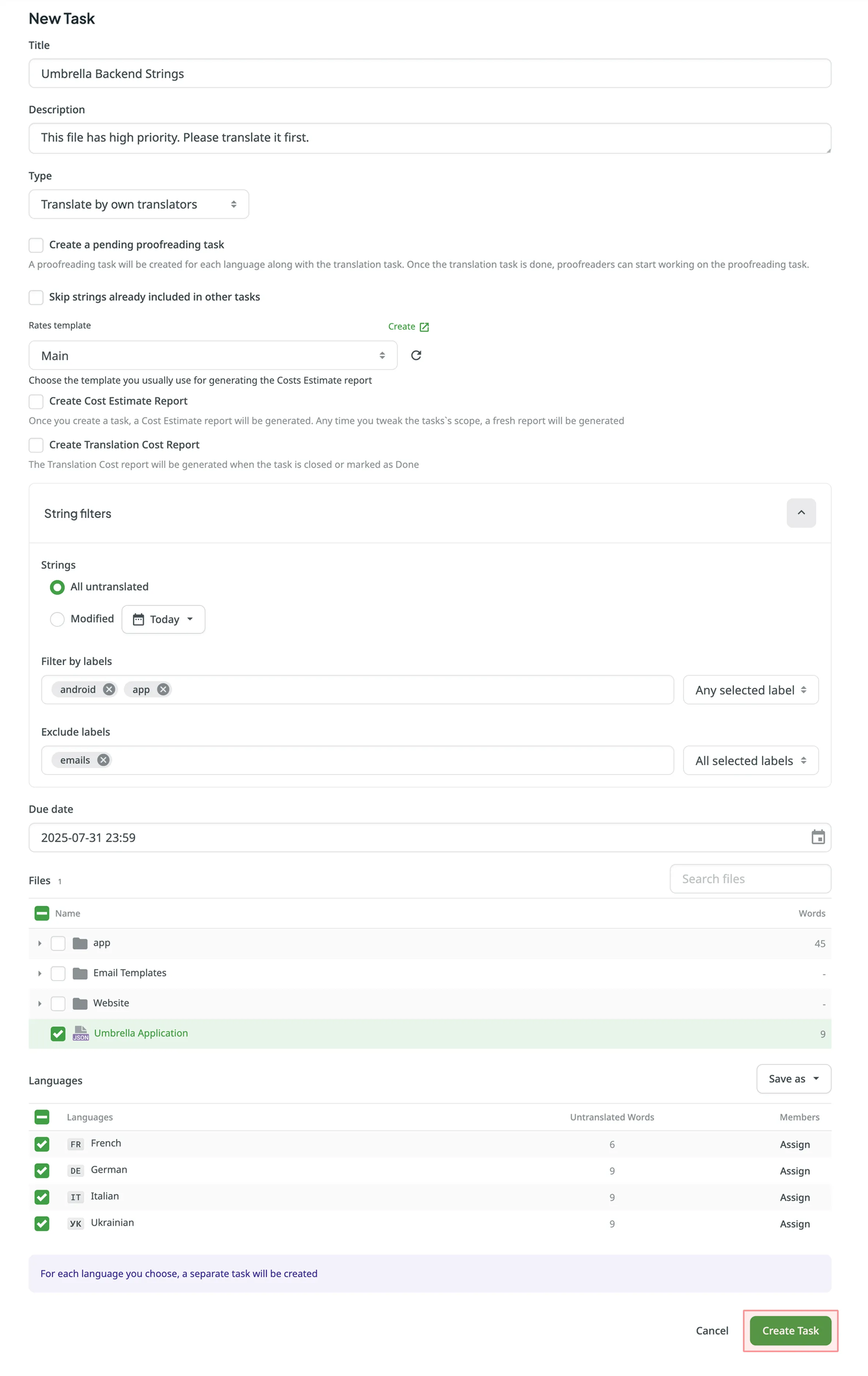
- Set the task parameters:
- Title – specify the name of the task that will be visible to translators or proofreaders.
- Description (optional) – add any additional details that may be helpful.
- Type – select between Translate by own translators, Proofread by own proofreaders, Translate by vendor, and Proofread by vendor.
When Translate by vendor or Proofread by vendor is selected for automated vendors (e.g., Crowdin Language Services, BLEND, or Gengo), you can access additional options next to the Translation Vendor drop-down menu:- Settings – configure account or payment settings for the selected vendor.
- View in Store – view the vendor’s details in the Store.
- Create a pending proofreading task (only for translation tasks) – creates a separate proofreading task that starts once the translation is completed.
- Preceding task (only for proofreading tasks) – link the task to a previously created translation task to inherit its scope and language settings.
- Skip strings already included in other tasks – skip strings that are already assigned to other tasks.
- Rates template (optional) – select the template to be used for calculating task costs. You can set a template independently to clarify cost calculations without immediately generating reports.
- Create Cost Estimate Report – automatically generate a Cost Estimate report after the task is created or edited.
- Create Translation Cost Report – automatically generate a Translation Cost report when the task status is changed to Done or Closed.
- String filters – filter which strings should be included in the task:
- Strings – select whether to include all untranslated or not approved strings, only those modified within a specific period, or only those with translations updated within a specific period (only for proofreading tasks).
- Filter by labels (optional) – select one or more labels to include only strings with the specified labels. Then, select the match rule:
- All selected labels – includes only strings that have all selected labels (AND logic).
- Any selected label – includes strings that have at least one of the selected labels (OR logic).
- Exclude by labels (optional) – select one or more labels to exclude strings with the specified labels. Then, select the match rule:
- All selected labels – excludes only strings that have all selected labels (AND logic).
- Any selected label – excludes strings that have at least one of the selected labels (OR logic).
- Include pre-translated strings only (only for proofreading tasks) – include only strings that were previously pre-translated.
- Due Date (optional) – set a deadline.
- Files – select files to include in the task.
- Languages – select target languages (a separate task will be created for each selected language). The Untranslated Words or Not Approved Words column shows the total number of words added to the task.
- Click Assign to assign users to the task for each language separately.
- (Optional) Use a saved template to apply language and member assignment settings, or save the current configuration for future use.
- Click Create Task.
- Open your project and go to the Tasks tab.
- Click Create Task.
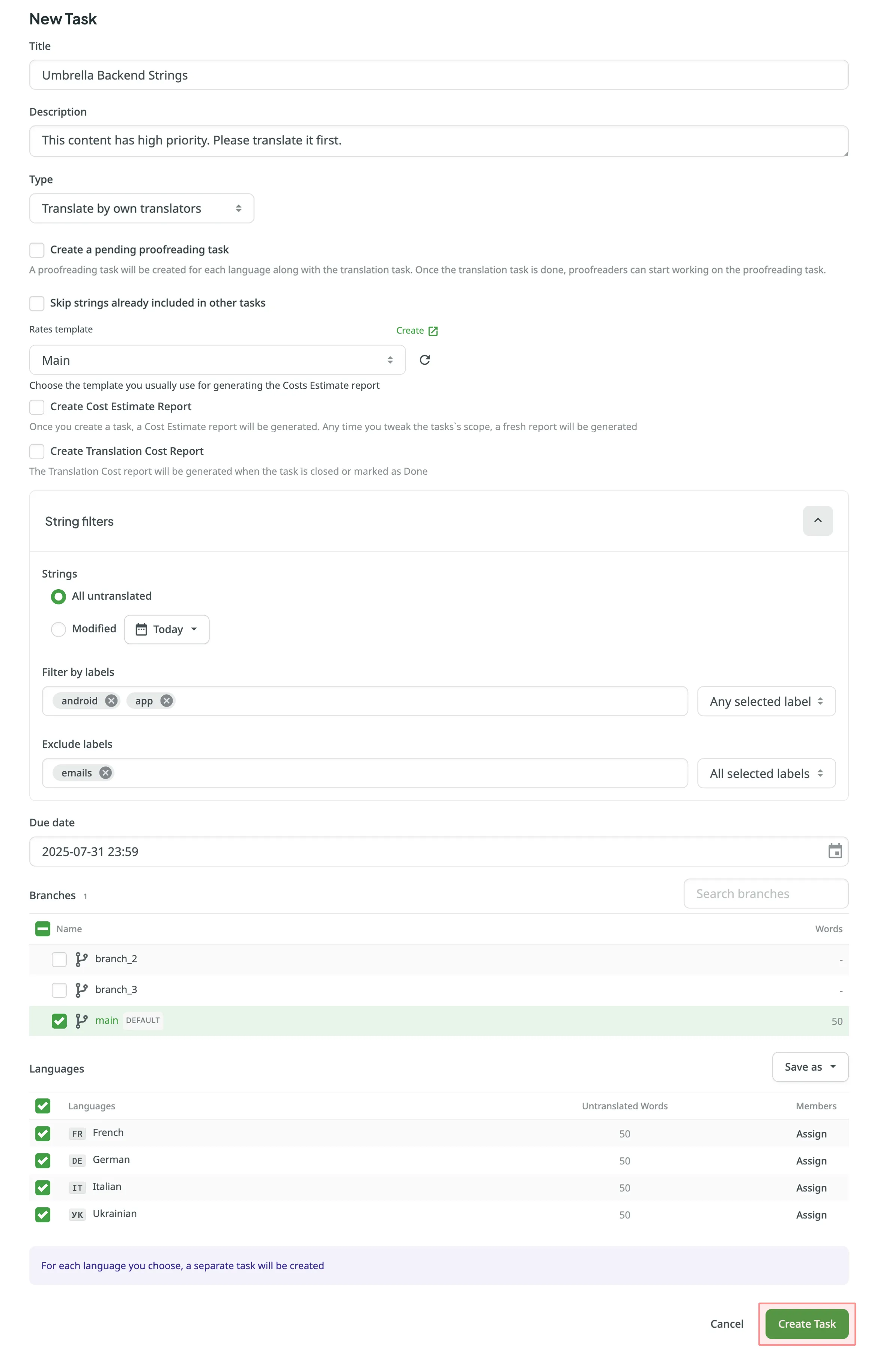
- Set the task parameters:
- Title – specify the name of the task that will be visible to translators or proofreaders.
- Description (optional) – add any additional details that may be helpful.
- Type – select between Translate by own translators, Proofread by own proofreaders, Translate by vendor, and Proofread by vendor.
When Translate by vendor or Proofread by vendor is selected for automated vendors (e.g., Crowdin Language Services, BLEND, or Gengo), you can access additional options next to the Translation Vendor drop-down menu:- Settings – configure account or payment settings for the selected vendor.
- View in Store – view the vendor’s details in the Crowdin Store.
- Create a pending proofreading task (only for translation tasks) – creates a separate proofreading task that starts once the translation is completed.
- Preceding task (only for proofreading tasks) – link the task to a previously created translation task to inherit its scope and language settings.
- Skip strings already included in other tasks – skip strings that are already assigned to other tasks.
- Rates template (optional) – select the template to be used for calculating task costs. You can set a template independently to clarify cost calculations without immediately generating reports.
- Create Cost Estimate Report – automatically generate a Cost Estimate report after the task is created or edited.
- Create Translation Cost Report – automatically generate a Translation Cost report when the task status is changed to Done or Closed.
- String filters – filter which strings should be included in the task:
- Strings – select whether to include all untranslated or not approved strings, only those modified within a specific period, or only those with translations updated within a specific period (only for proofreading tasks).
- Filter by labels (optional) – select one or more labels to include only strings with the specified labels. Then, select the match rule:
- All selected labels – includes only strings that have all selected labels (AND logic).
- Any selected label – includes strings that have at least one of the selected labels (OR logic).
- Exclude by labels (optional) – select one or more labels to exclude strings with the specified labels. Then, select the match rule:
- All selected labels – excludes only strings that have all selected labels (AND logic).
- Any selected label – excludes strings that have at least one of the selected labels (OR logic).
- Include pre-translated strings only (only for proofreading tasks) – include only strings that were previously pre-translated.
- Due Date (optional) – set a deadline.
- Branches – select branches to include in the task.
- Languages – select target languages (a separate task will be created for each selected language). The Untranslated Words or Not Approved Words column shows the total number of words added to the task.
- Click Assign to assign users to the task for each language separately.
- (Optional) Use a saved template to apply language and member assignment settings, or save the current configuration for future use.
- Click Create Task.
Read more about project types.
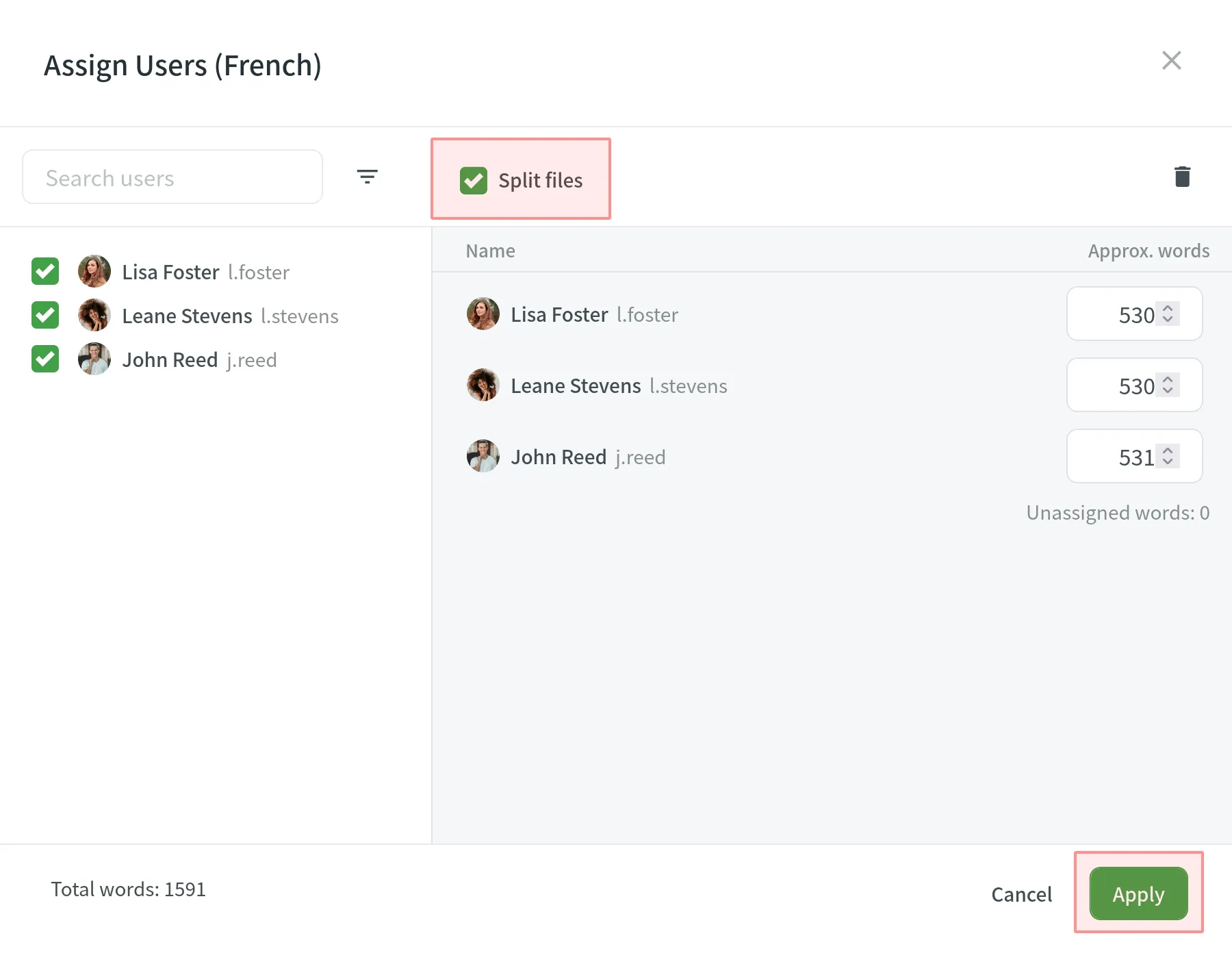
Splitting content between several members allows you to speed up the translation or proofreading process.
While in string-based and file-based projects this option is called differently (i.e., Split strings and Split files), the basic principle of its behavior remains the same.
To split content between several members select Split files (in file-based project) or Split strings (in file-based project) in the Assign users dialog. You can set the approximate amount of words for each assignee.
If a Rates template is selected during task creation, the Finance section will appear when viewing the created task. This section provides an overview of the selected rate scheme and any generated financial reports.
After a report is generated, it becomes available in the Archive section. The costs are also displayed directly on the task card in the Board section. Hover over on a task card to view both the Estimated cost and Actual cost.
Open the task to view the Finance section, which includes the following details:
- Rate Template: Displays the name of the applied template. Project managers can click the template name to open the Edit rates template dialog and view or modify its parameters (e.g., Base rates, Custom rates, Net Rate Schemes).
- Estimated cost: If the Create Cost Estimate Report option was selected, this report is generated automatically after the task is created or updated. If the task scope changes (e.g., files or strings are modified), a new Cost Estimate report will be generated automatically to reflect the updated estimate.
- Actual cost: If the Create Translation Cost Report option was selected, this report is generated automatically once the task is moved to the Done or Closed status.
Both the estimated and actual cost sections will display the calculated cost based on the selected rates template, a clickable report name (e.g., Report #123) that links to the full report in the Archive section, and the report generation date.
You can manually generate or regenerate reports for an existing task at any time. Click in the upper-right corner of the task view and select Cost estimate or Translation cost.
To view a detailed breakdown, click the report name (e.g., Report #123) under the Estimated or Actual cost. The full report will open in a new browser tab. Within the opened report, click Rate Schema to review the specific rates applied during its generation.
If the underlying rates or the assigned rate template are modified after a report has been generated, a Rates Mismatch label will appear next to the Estimated or Actual cost. This label indicates that the current template configuration differs from the one used to generate the report, meaning the displayed costs might be outdated.
To resolve the mismatch and update the costs, click the report name in the Finance section and regenerate the report. The system will apply the latest rates, and the Rates Mismatch label will disappear.
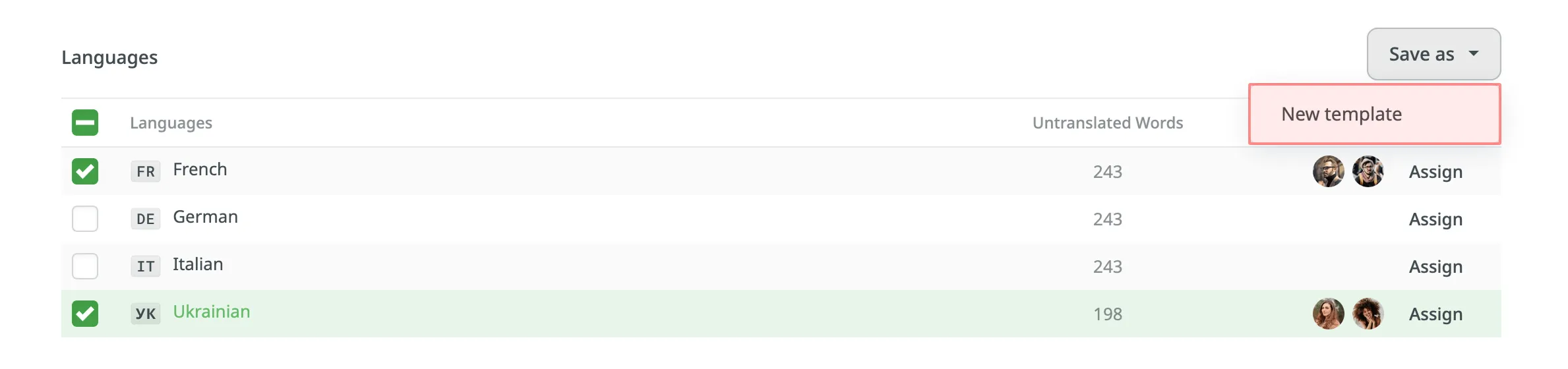
Use task templates to save the configuration of the Languages section, including target languages and member assignments. Templates help you quickly apply these configurations when creating new tasks, saving time and ensuring consistency.
To save the language and member assignment settings as a template, follow these steps:
- In the Languages section, click Save as.
- Select New template from the drop-down menu.
- In the dialog that appears, enter a name for your template.
- Click Save.
Your template is now saved and available for future tasks.
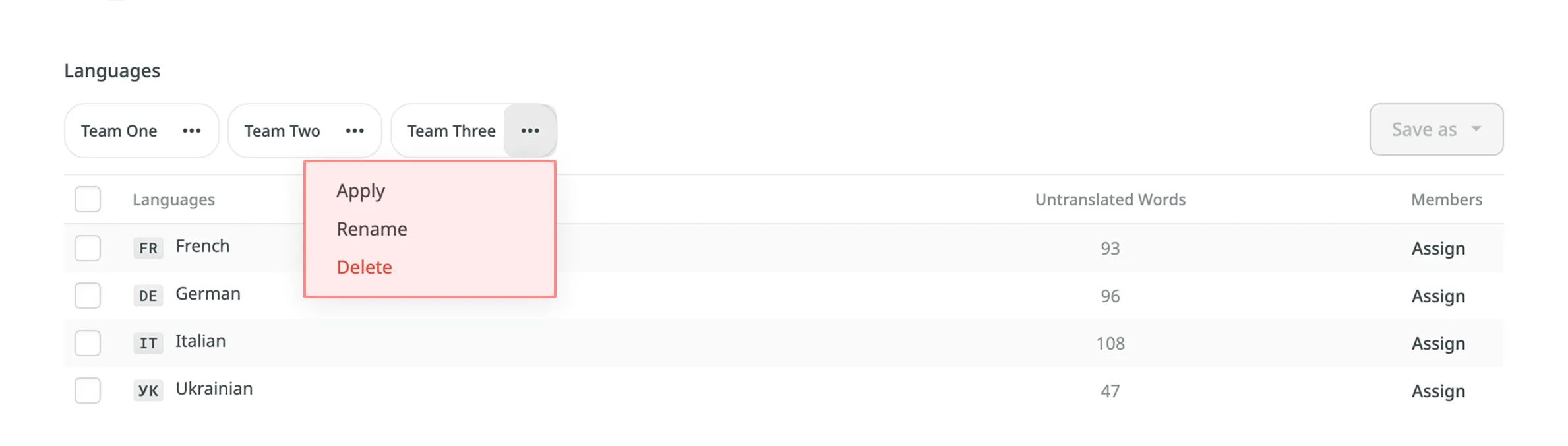
To apply a saved template to a new task, follow these steps:
- In the Languages section, click on the template name to apply it immediately.
- Alternatively, click next to the template name and select Apply.
To rename or delete a saved template, follow these steps:
- In the Languages section, click next to the template name.
- Select one of the following options:
- Rename – Enter a new name for your template.
- Delete – Permanently remove the template.
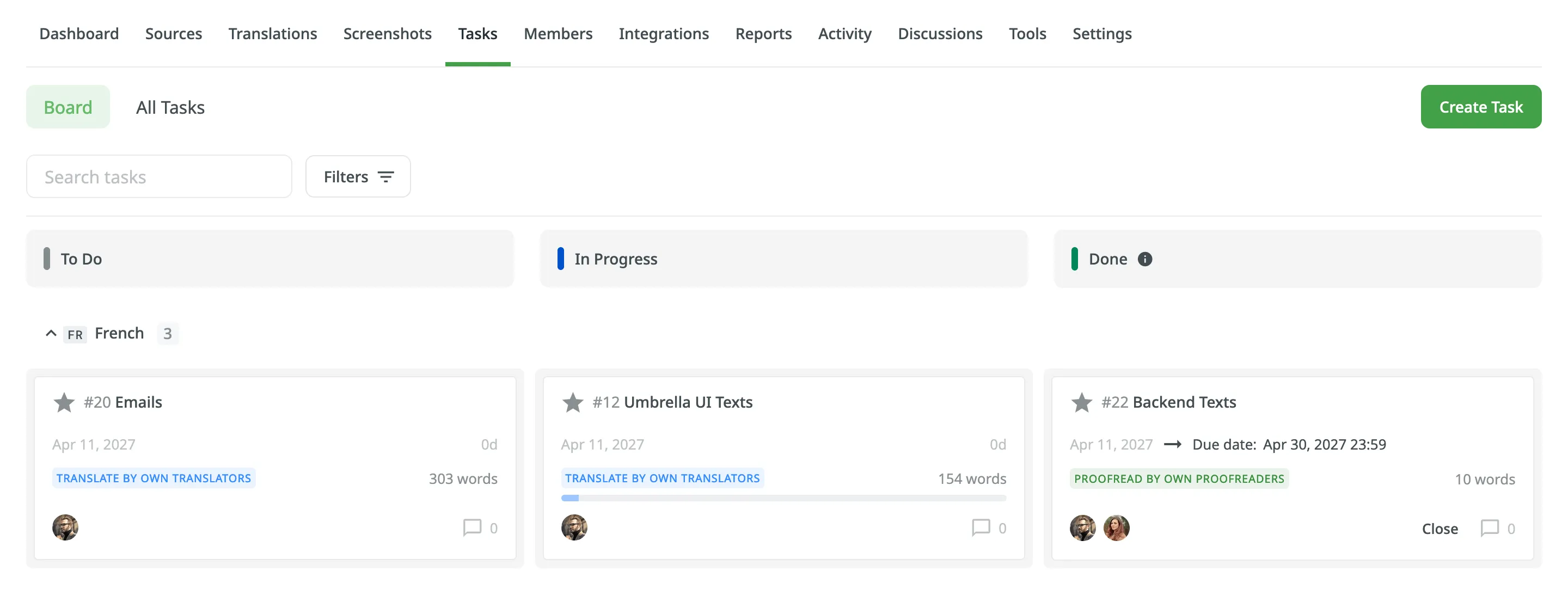
In the Tasks tab, you can view all the project tasks in the following two sections: Board, All Tasks.
In the Board section, tasks are organized into three columns: To Do, In Progress, and Done. This layout provides a clear view and visualization of the current status of all tasks. Within each column, tasks are further grouped by target languages. Each target language group can be collapsed to hide task cards or expanded to display them. This feature is particularly useful for decluttering the view and focusing on specific languages.
Use the Search tasks field to search for tasks by name or filter tasks using various filter options. To view the task details, open it by clicking on the task name.
The All Tasks section provides a list view of all project tasks. It is particularly useful for efficiently managing large volumes of tasks. From this view, you can select multiple tasks to perform bulk actions, such as changing assignees, updating statuses, or deleting tasks.
Similar to the Board section, the All Tasks view also allows you to use the Search tasks field and filter. Additionally, you can sort the task list in ascending or descending order using the available sort options (ID, Created at, Resolved at, Due Date).
From the All Tasks view, you can generate a Cost Estimate or Translation Cost report for one or more specific tasks. This allows you to quickly assess costs without having to manually select tasks on the report generation page.
To generate a report for selected tasks, follow these steps:
- In the All Tasks view, select the desired tasks using the checkboxes. You can use filters to narrow down the list before selection.
- Click in the upper-right corner.
- Select Cost estimate or Translation cost from the drop-down menu.
You will then be redirected to the corresponding report generation page with the selected tasks pre-filled, where you can configure and generate the report.
To change the task details, follow these steps:
- Open your project and go to the Tasks tab.
- Click on the name of the task you want to change either in the Board or All tasks section.
- Click in the upper-right corner and select Edit.
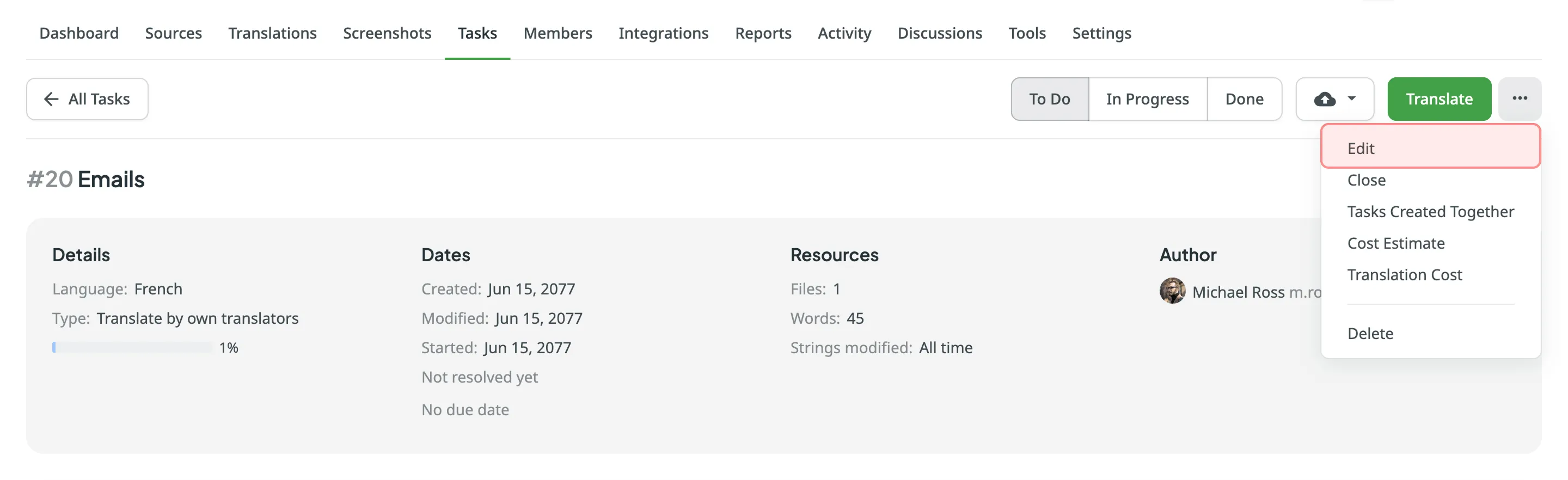
- Make the necessary edits and click Save.
How do the source file updates affect the existing translation and proofreading tasks?
After the source file update, the list of source strings included in the task will be updated in the following way:
- The strings removed from the source file during the update will be removed from the task.
- The modified strings marked with the Keep Translations option will appear in the task with the new modified text.
- The newly added strings won’t affect the existing task in any way.
If the source file is restored to the revision containing the removed strings, they will reappear in the task.
When you create tasks for multiple languages at once, they are generated as a single batch. To easily find and navigate between all tasks from the same batch, you can use the Tasks Created Together option.
To view tasks created together, follow these steps:
- Open any task from the batch.
- Click in the upper-right corner.
- Select Tasks Created Together.
You will be redirected to the All Tasks section with a batchId filter (e.g., batchId:123456) automatically applied in the search field. This view will display only the tasks that were generated during that specific creation process.
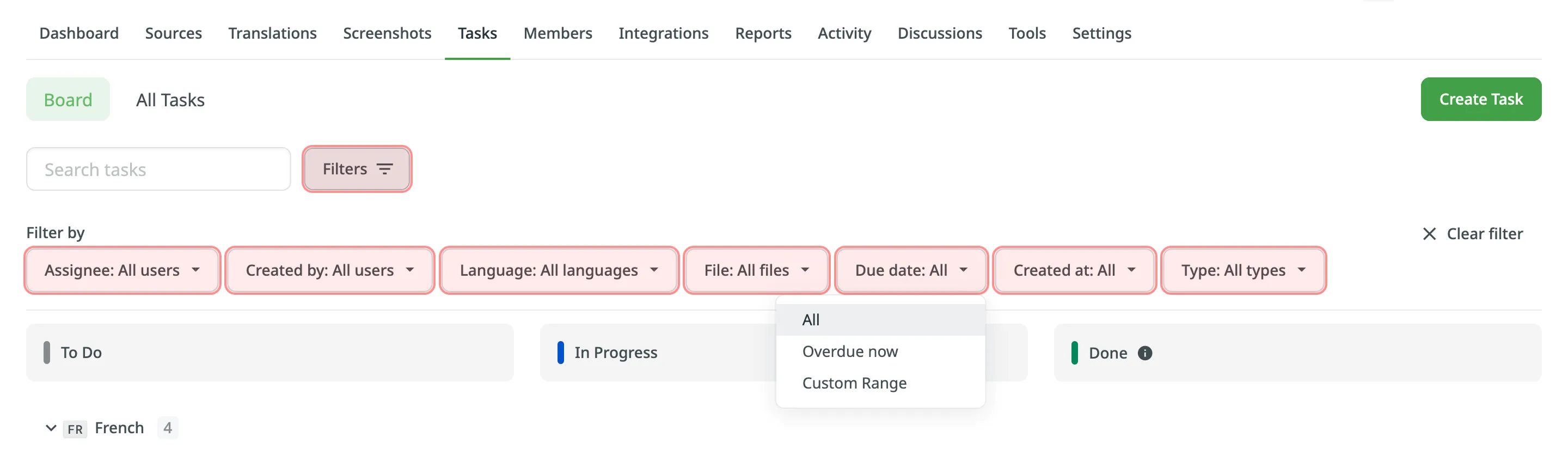
By default, all project tasks are displayed in the Tasks tab either in the Board or All Tasks sections. If necessary, you can filter tasks using the available filter options:
- Assignee: All users or particular user.
- Created by: All users or particular user.
- Language: All languages or particular language.
- File: All files or particular file or folder.
- Due date: All, Overdue now, Custom Range.
- Created at: All, Today, Yesterday, Last 7 days, Last 30 days, This month, Last month, Custom Range.
- Type: All types, Translate by own translators, Proofread by own proofreaders, Translate by vendor, Proofread by vendor.
- Status: All statuses, To Do, In Progress, Done, Closed.
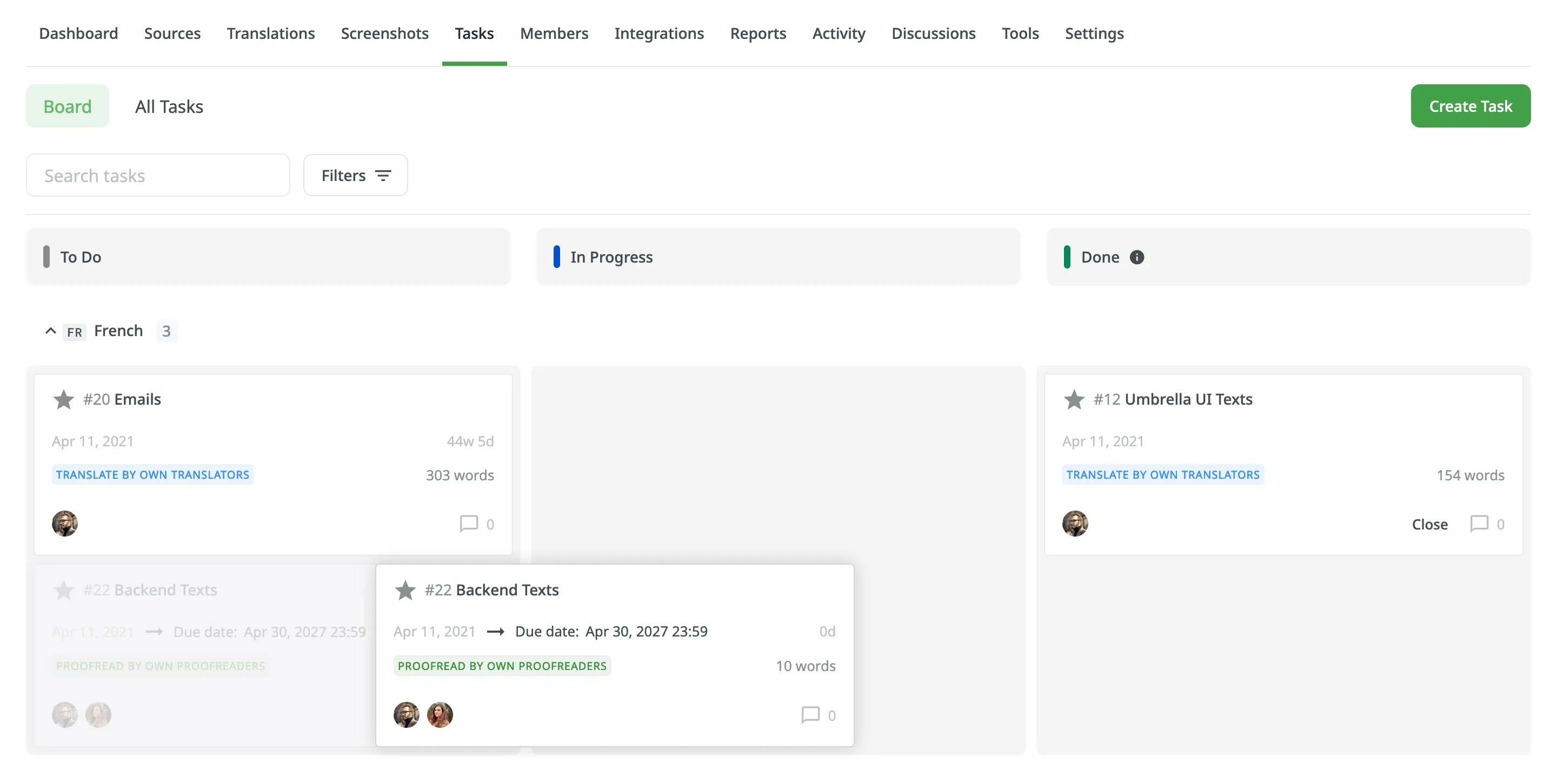
To change the task status in the Board section, select the task assigned to you and drag it to the column with the status you need.
To change the task status in the All Tasks section, select the needed task, click Change status, and select the new status.
Alternatively, in either of the two sections, you can change the task status directly in the task itself using the respective buttons: To Do, In Progress, Done.
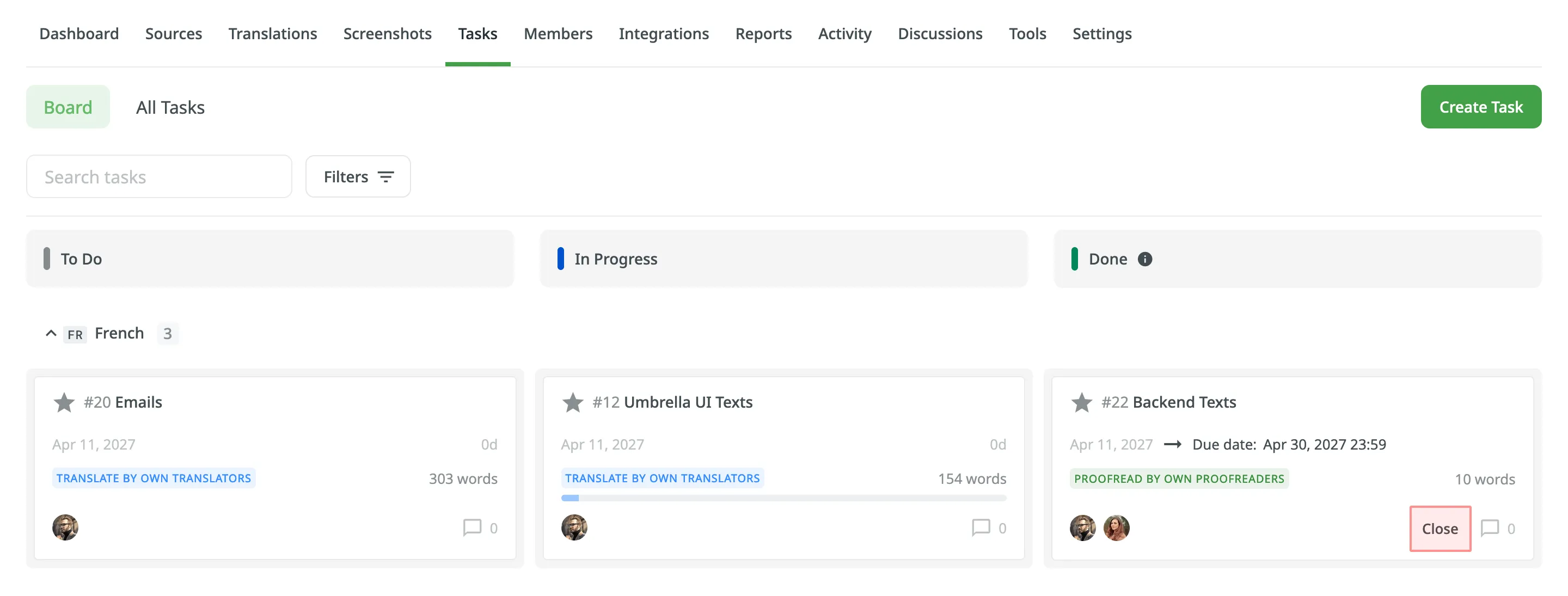
To close the task when it’s finished, move it to the Done column and click Close.
To view the list of closed tasks, open the All Tasks section and use the filter Status: Closed.
Sequential tasks streamline the management of translation and proofreading processes in a structured, step-by-step manner. This feature is particularly useful for managing content that requires translation followed by proofreading, ensuring a smooth workflow.
Once created, sequential tasks are represented on the Tasks Board, displaying both the translation task and its linked pending proofreading task.
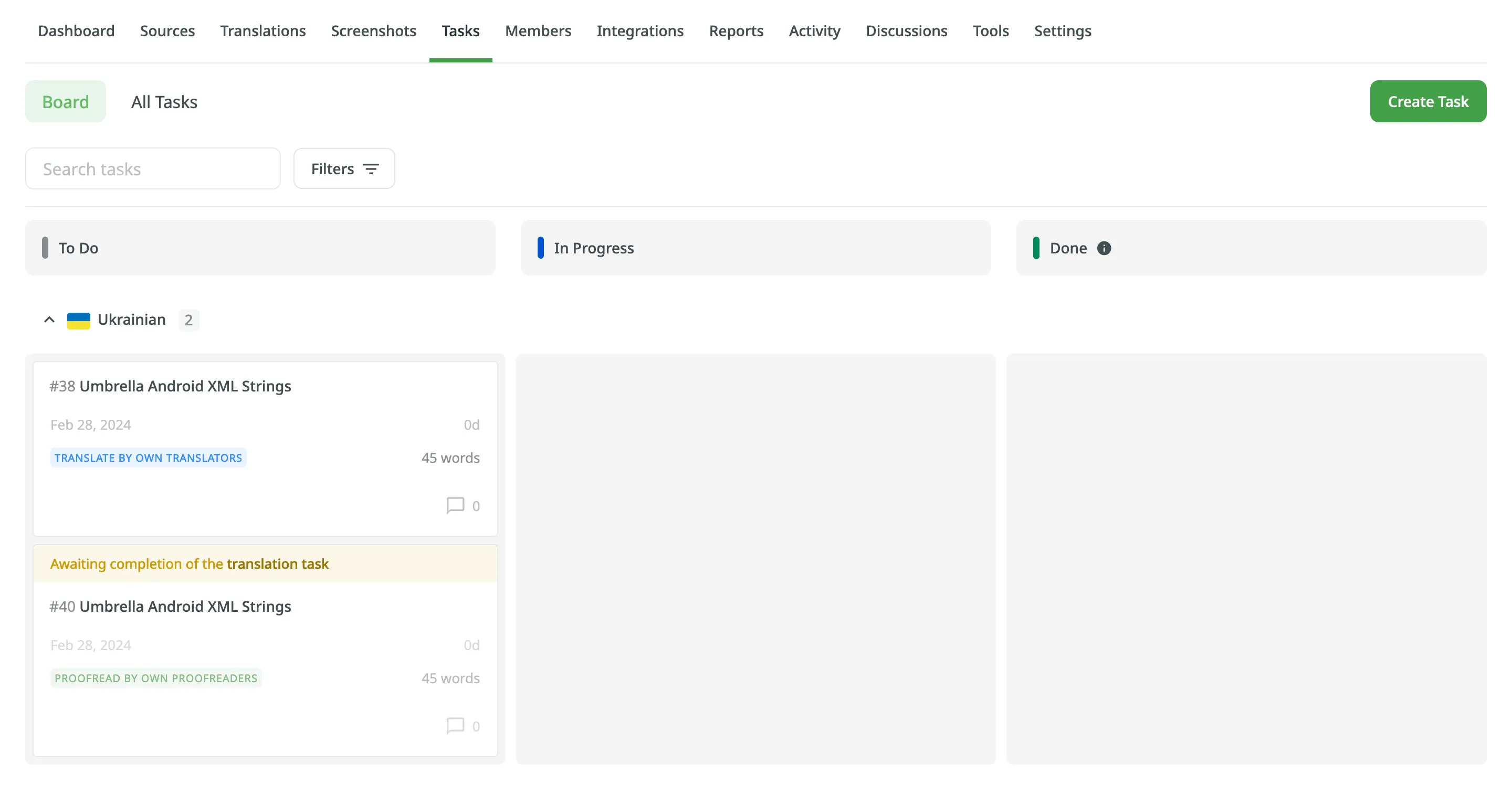
The concept of sequential tasks is based on two primary approaches:
- Creating a translation task with its associated pending proofreading task:
- Start by creating a translation task and specifying the target languages and work scope.
- Select Create a pending proofreading task to generate the associated proofreading task. You can set separate due dates for the translation and proofreading tasks if needed.
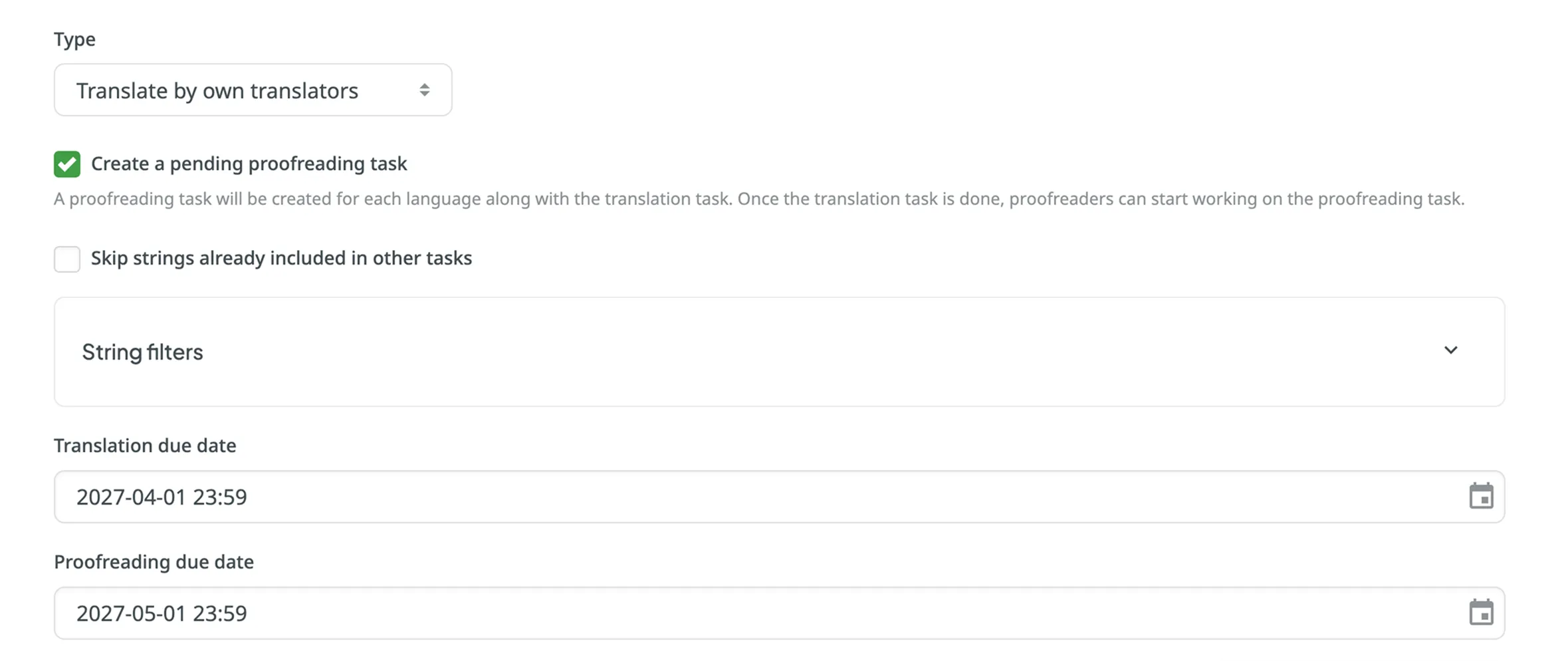
- While translators work on the translation task, the linked proofreading task remains pending.
- When the translation task is completed, the status of the associated proofreading task changes from Pending to To Do. Proofreaders will then receive notifications that it’s ready for review.
- Creating a proofreading task and linking it to a translation task:
- Create a proofreading task and select the translation task you want to link it with from the Preceding task drop-down menu. You can link it to either a completed or an active translation task.
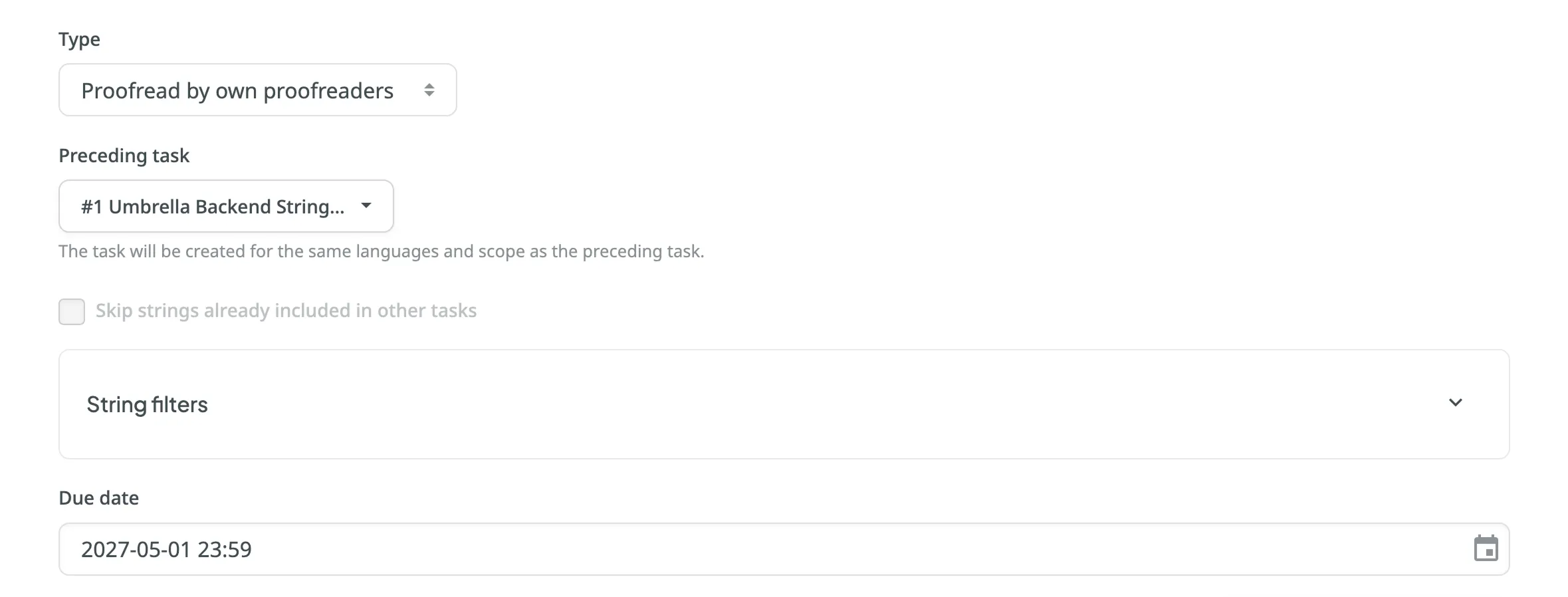
- The languages and work scope are automatically inherited from the linked translation task.
- The proofreading task remains pending until the linked translation task is completed.
- As with the first approach, proofreaders receive notifications when the proofreading task is ready for review.
Sequential tasks are available for the following task types:
- Translate by own translators
- Proofread by own translators
- Translate by vendor:
- Crowdin Language Services
- Vendors that manage the translation process with a dedicated manager
- Proofread by vendor:
- Crowdin Language Services
- BLEND
- Vendors that manage the translation process with a dedicated manager
- When editing a pending proofreading task, changes are limited to fields that do not affect the scope of the task.
- Pending proofreading tasks can be deleted if necessary. In this case, linked translation tasks are preserved.
- Deleting a translation task with an associated sequential proofreading task results in the deletion of both tasks simultaneously.